Showing posts with label Troubleshooting Tips. Show all posts

Tuesday, August 25, 2015

Clearing a Browser's Cache May Help Fix a Lot of Blackboard Issues

Firefox for Windows

  1. If the "History" menu does not appear at the top, press the "ALT" key on your keyboard.
  2. From the History (or the "Tools") menu, select "Clear Recent History".
  3. From the "Time Range to clear" drop-down, choose "Everything"
  4. Under "Details" check all the boxes.  Click "Clear Now" 
     

Google Chrome

  1. Open Google Chrome and click the Chrome menu () upper-right.
  2. Click Settings.
  3. Click "Show Advanced Settings..."
  4. Click the "Clear browsing data..." button.
  5. Select "the beginning of time" from the drop-down
  6. Check the following boxes, and click "Clear browsing data":
     

    Firefox for Macintosh

    1. From the Firefox menu, select History...
    2. From the sheet that drops down, select Clear Recent History.  Select Everything from the "Time Range to Clear" drop down menu.  Select the check boxes for "Browsing & Download History", "Forms & Search History", "Cookies", "Cache" then Select "Clear Now".

Safari for Macintosh

  1. From the Safari menu, select Reset Safari...
  2. When prompted, click Reset to confirm that you want to reset the browser.

Help! My Weighted Total is Incorrect!

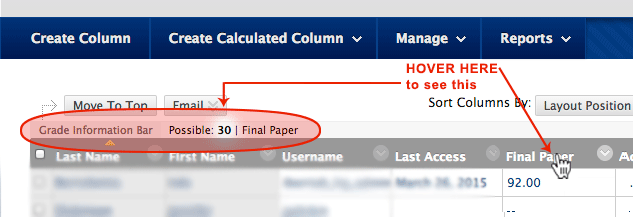
It’s a common problem caused by that tiny Devil who resides in the details. Very often, the cause is this: a discrepancy between a column’s possible points and those actually entered.  In other words, when you first set up grading on a tool (or on a manually-made column), you might have assigned the highest possible points as something different than what you actually graded for. An example would be, I have entered 30 as possible points on a final paper, but forgetting this weeks later, I used a base of 100 when grading.
This is easy to check by hovering over the top of the column and checking the information that appears just at the top of the grade center area. See figure here:


Screenshot of points discrepancy

To fix it, hover and click the small arrow at the top of the erroneous column, choose “Edit Column Information” and change the points possible to 100 (or whatever scale you used for grading).

Student Preview

 Instead of just being able to see what content is visible (as is the case with the Edit Mode button), instructors will be able to take exams, submit assignments, and view grades just as a student would.
Entering student preview mode can be done at the click a button. Upon entering this student view, an actual student account is created (visible in the grade center), and the instructor is put in the driver seat of that account.
When leaving the student view, the instructor can choose to keep the account in their course. This allows the instructor to “evaluate” the fake student’s work, enter grades for that account, and then go back in to that account and see the results of their grading.
Alternatively, the student preview account can be deleted when leaving the view, so that it is no longer listed in the grade center.

Monday, July 27, 2015

Simple Solutions to Common Computer Problems

Power button will not start computer

  • Solution 1: If your computer does not start, begin by checking the power cord to confirm that it is plugged securely into the back of the computer case and the power outlet.
  • Solution 2: If it is plugged into an outlet, make sure it is a working outlet. To check your outlet, you can plug in another electrical device, such as a lamp or cellphone, and see if it receives electricity properly.
  • Solution 3: If the computer is plugged into a surge protector, verify that it is turned on. You may have to reset the surge protector by turning it off and then back on. You can also plug a lamp or other device into the surge protector to verify that it is on. 
  • Solution 4: If you are using a laptop, the battery may not be charged. Plug the AC adapter into the wall, then try to turn on the laptop. If it still doesn't start up, you may need to wait a few minutes and try again.

An application is running slowly

  • Solution 1: Close and reopen the application.
  • Solution 2: Update the application. To do this, click the Help menu and look for an option to check for Updates. If you don't find this option, another idea is to run an online search for application updates. 

An application is frozen

Sometimes an application may become stuck, or frozen. When this happens, you won't be able to close the window or click any buttons within the application.

  • Solution 1: Force quit the application. On a PC, you can press (and hold) Ctrl+Alt+Delete (the Control, Alt, and Delete keys) on your keyboard to open the Task Manager. On a Mac, press and hold Command+Option+Esc. You can then select the unresponsive application and click End task (or Force Quit on a Mac) to close it.  

screenshot of Windows 8


  • Solution 2: Restart the computer. If you are unable to force quit an application, restarting your computer will close all open apps.


Monday, July 13, 2015

Lost an Important File? Here’s How You Go About Recovering It.

Important note, this may not always work but it's worth a try. 

Many people don’t realize how easy it is to accidentally hit Don’t Save when they close a program. A reflexive move such as this can make hours of hard work disappear. As a reasonable assurance against such accidents, applications like Microsoft Word automatically save changes to documents at regular intervals (on Word, the function is called AutoRecover). You can minimize any loss of data by simply shortening the AutoRecover interval. In Microsoft Word 2013 you do this by going to File --> Options --> Save --> Save Autorecover information every ___ Minutes. Choose the interval you wish to have.  Then click OK.  
To recover the file  you can click on the Open tab on the side of the screen and scroll all the way to the bottom of the page and select "Recover Unsaved Documents".